Set up your existing account
During the initial run Thunderbird will offer
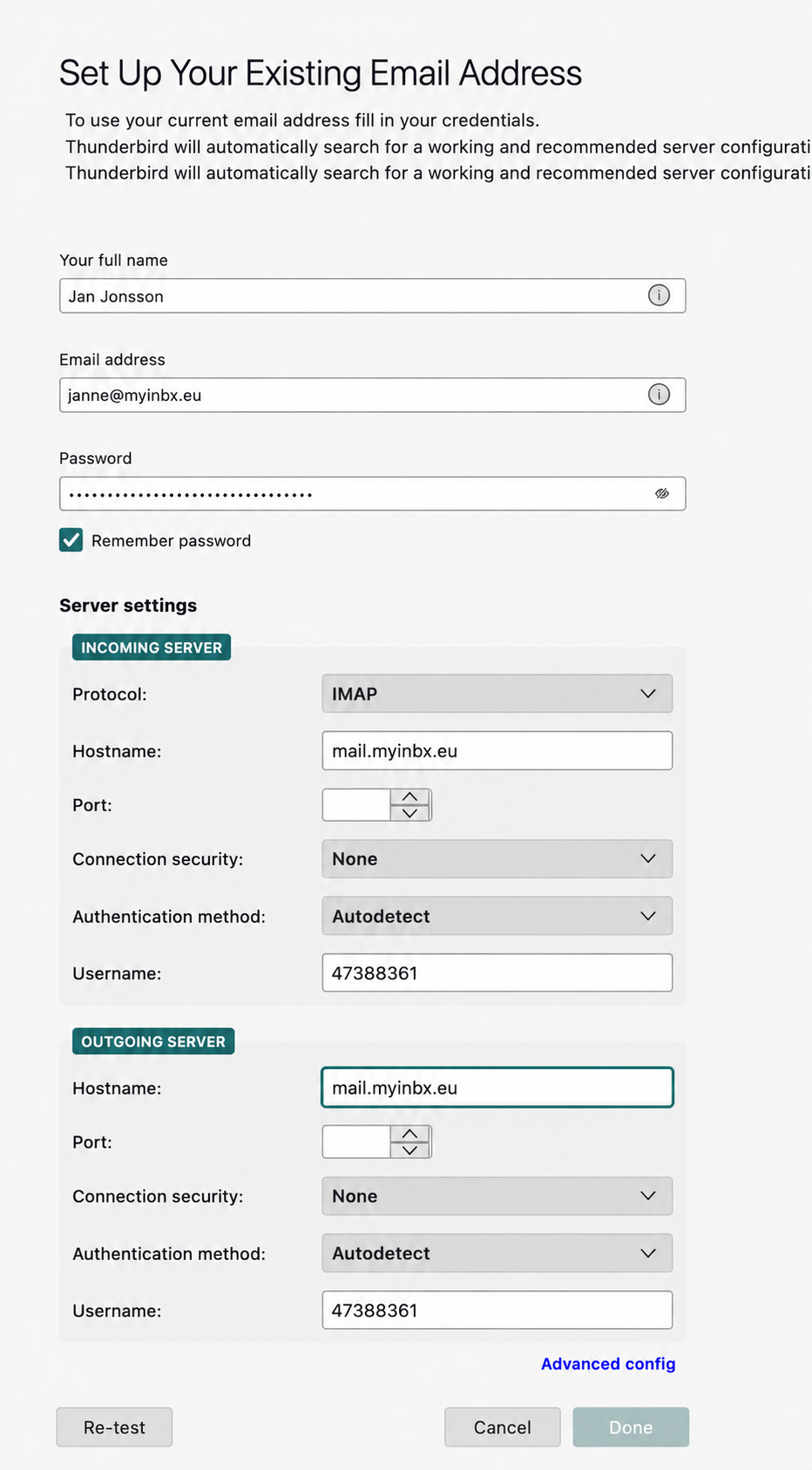
Set Up Your Existing Account. Choose that option and enter your
name, email and password.
Important: the Username must be your
MYINBX account number.
Initial setup — fill in name, email and password.
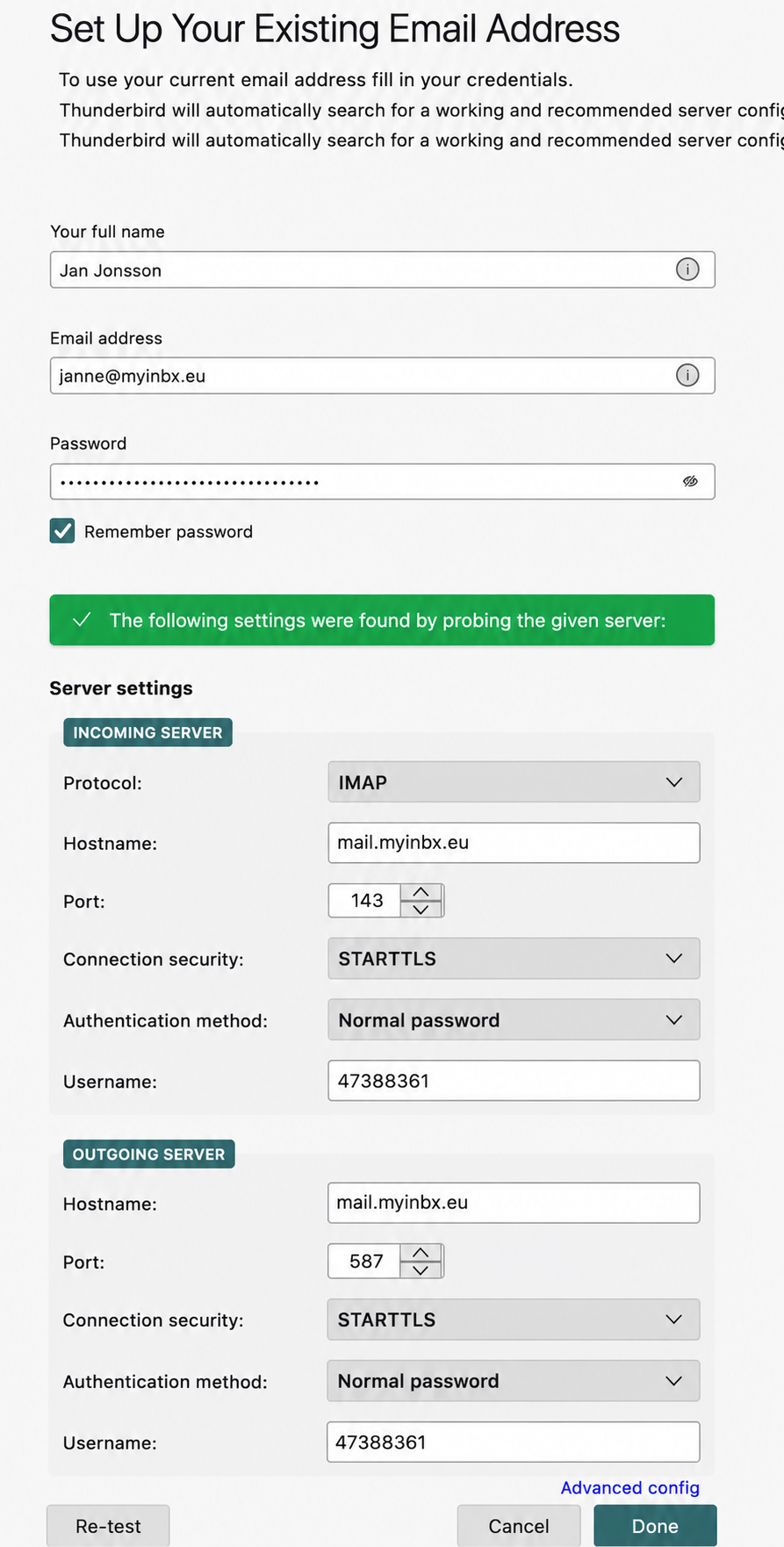
Incoming / Outgoing server settings
Choose IMAP, STARTTLS,
Normal password, and set the username.
Press Re-test to let Thunderbird probe the server.
Thunderbird auto-detected incoming and outgoing server settings.
Finish
Press Done to complete the email setup.
Enable end-to-end encryption (OpenPGP / GPG)
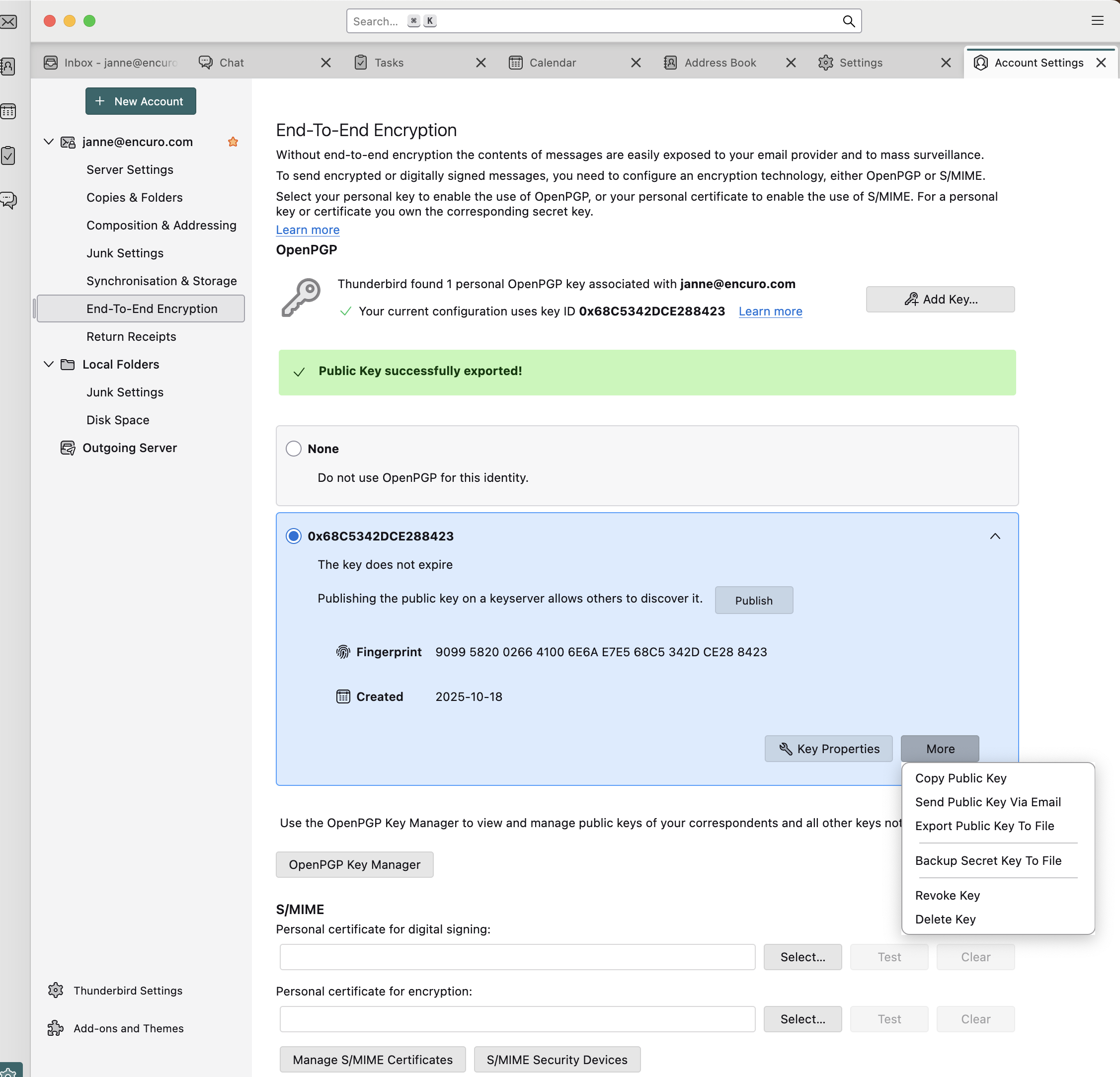
Open Thunderbird → Account Settings → End-to-End Encryption.
Import your private key, or click Add Key to create one.
Export the public key.
Export your public key from Thunderbird.
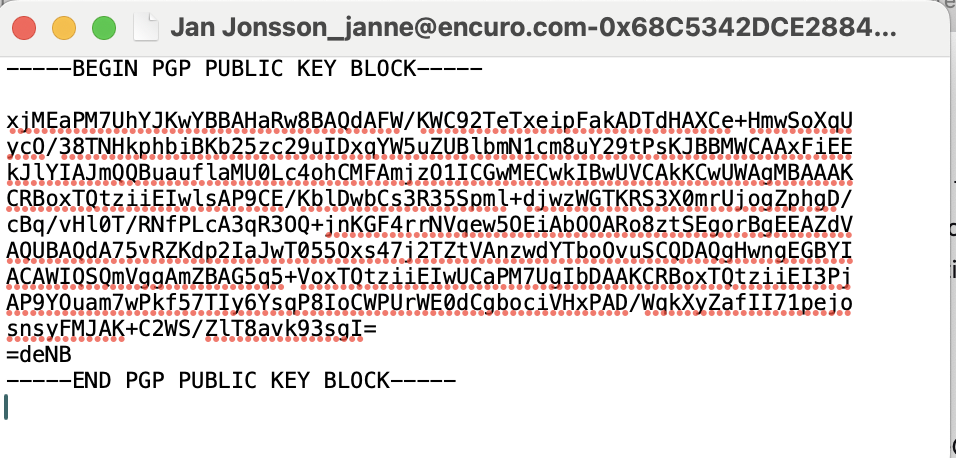
Open the exported file and copy the full ASCII-armored block
(-----BEGIN PGP PUBLIC KEY BLOCK-----).
Copy the public key from the exported file.
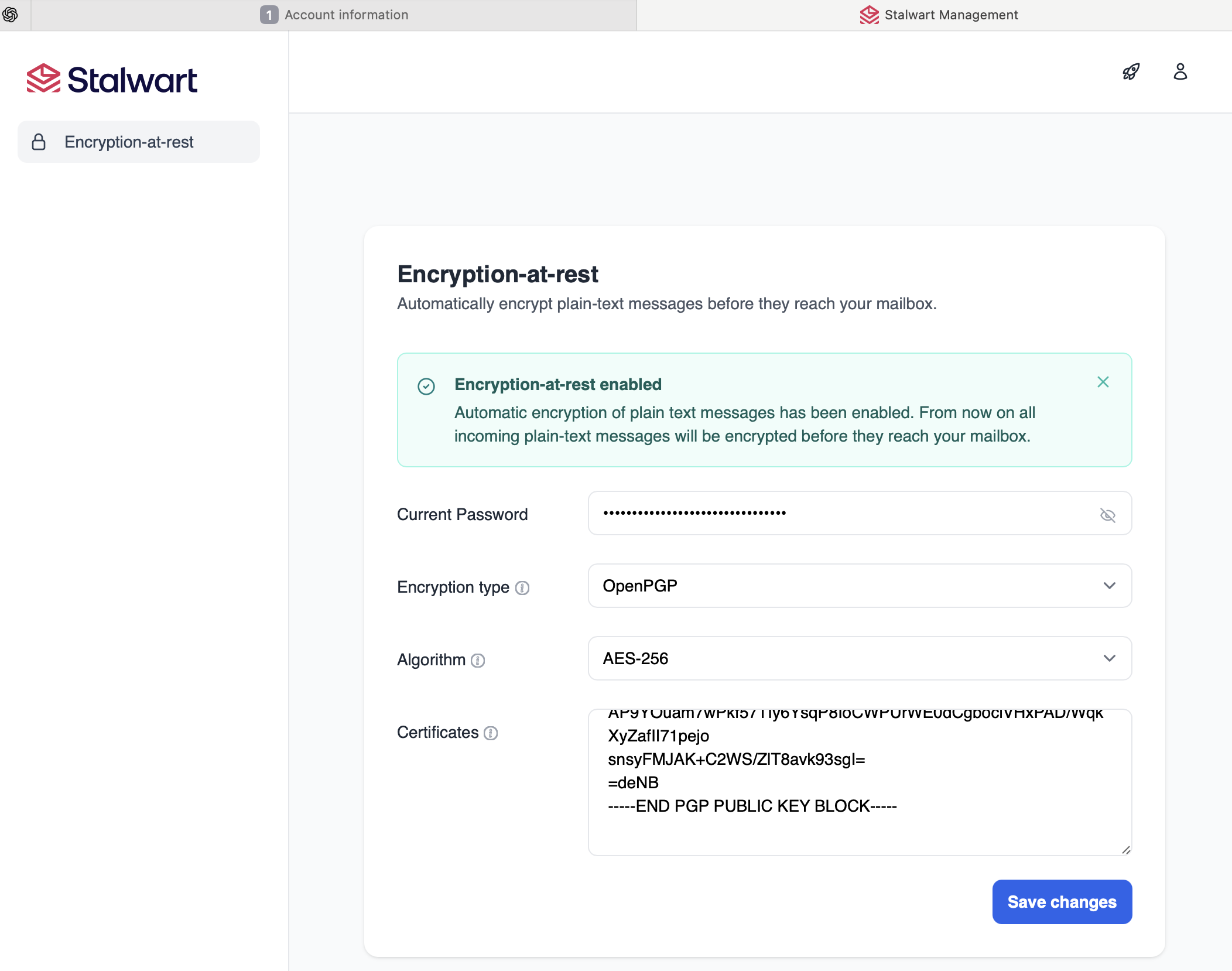
Go to MYINBX.EU, login at "account" and go to Manage GPG key at rest.
Paste the public key and save changes.
Paste the public key into Myinbx to enable encryption at rest.
What this achieves
From now on, even unencrypted incoming mail will be stored
encrypted at rest using your public key.
To read stored messages, your private key must be present in Thunderbird.
Important: back up your private key securely.
Losing it means losing access to encrypted messages.